

Add a contact
Add a contact to save a client's details, then turn them into a lead and a customer automatically as you send and sign documents. Every contact starts with the Contact status; sending them a proposal promotes them to Lead, and when the resulting contract is fully signed they become a Customer. You don't need QuickBooks to add a contact by hand.
Add a contact from the Contacts page
The Contacts page is the main place to create a contact. Open Contacts, click Add contact, and complete the New contact sheet.
Open Contacts.
Click Add contact.
Enter the required Name and Email fields.
Optionally add a Phone number, a Company name, and private Notes.
If the Assignable to tasks option is available, turn it on so job tasks can be assigned to this contact.
Click Create contact.
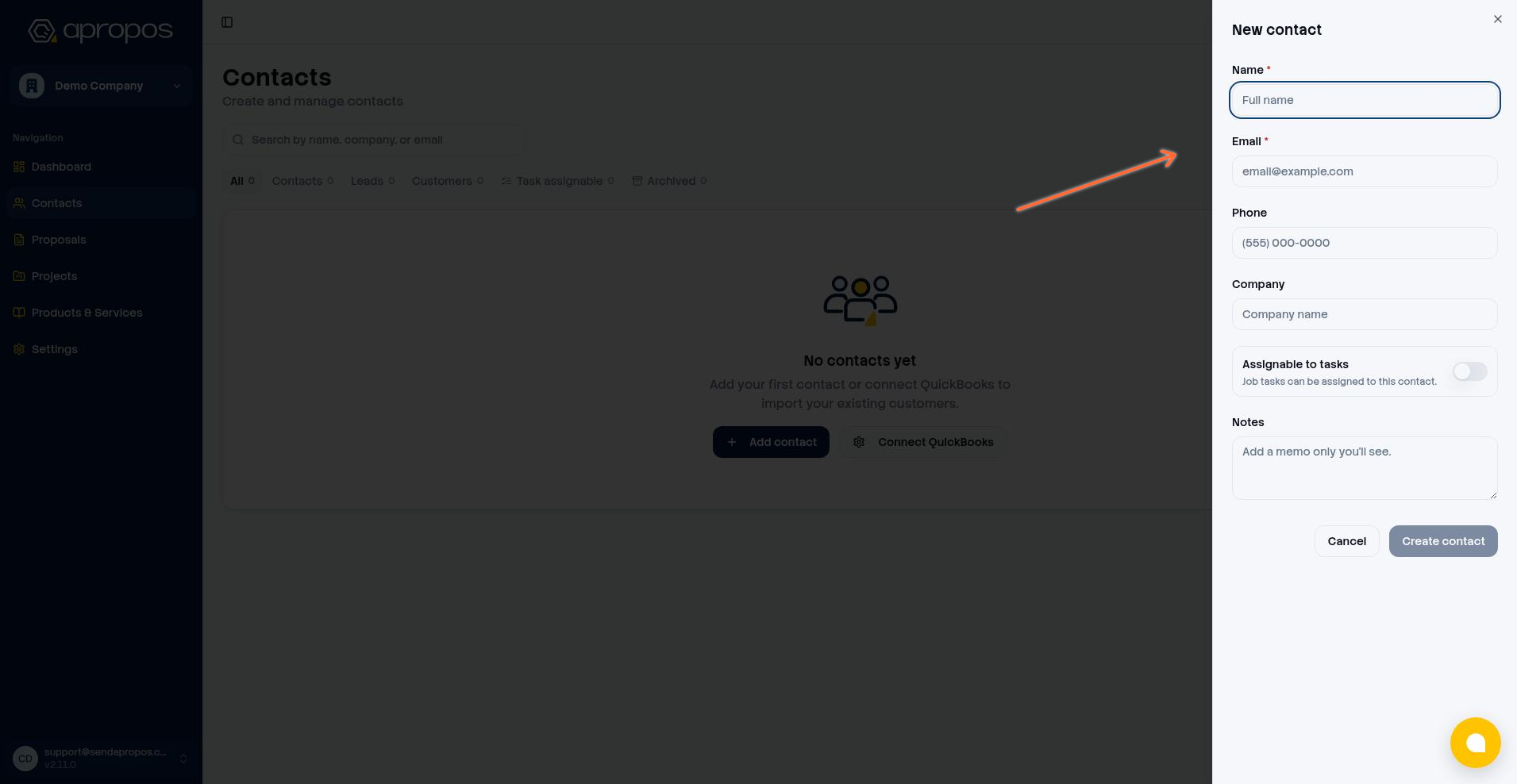
When the contact is saved, you see the confirmation Contact created and the sheet closes. If saving fails, the message Failed to create contact appears.
Handle a possible duplicate
Before saving, Apropos checks your active contacts for a matching name or email. If a match is found, a Possible duplicate contact dialog lists the existing matches and lets you decide.
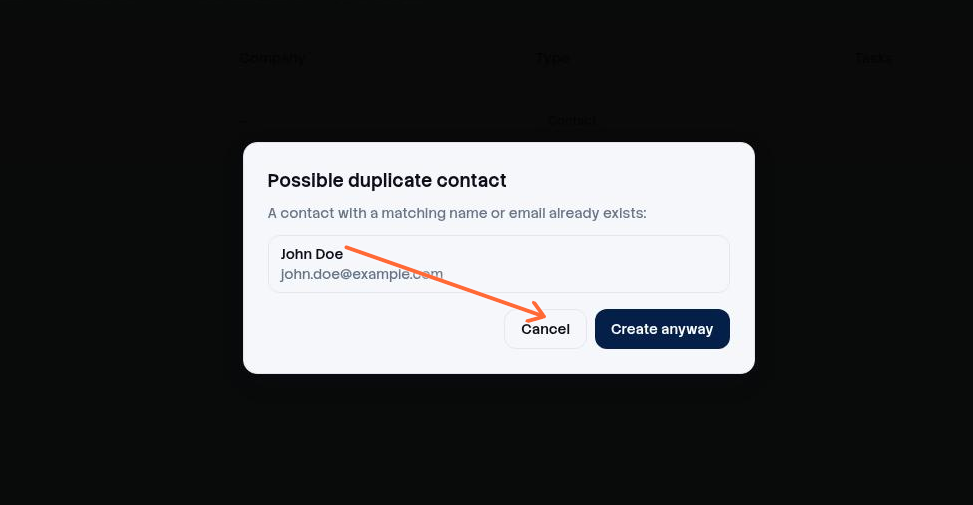
Cancel keeps the New contact sheet open so you can review the details.
Create anyway saves the contact as a new record anyway.
The check matches name or email exactly, ignoring case, and only looks at active (non-archived) contacts. Phone and company aren't part of the duplicate check.
Add a contact from other places
You can create a contact from two other spots, and both open the same New contact sheet.
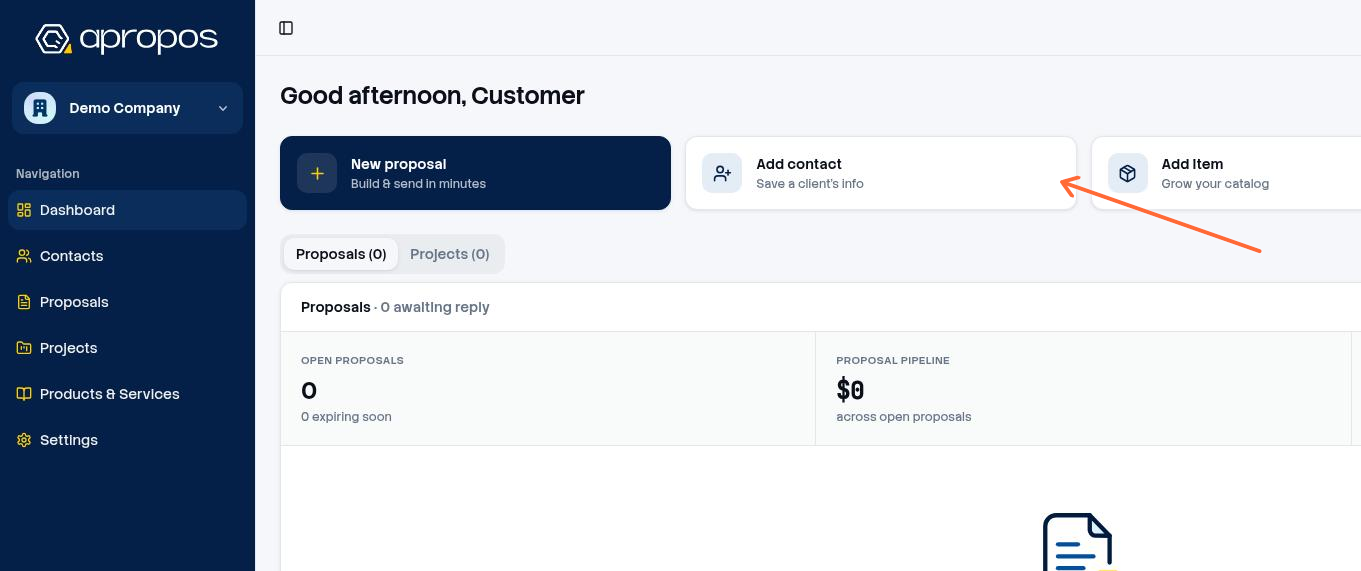
From the Dashboard, the Add contact quick action opens the Contacts page and starts the New contact sheet.
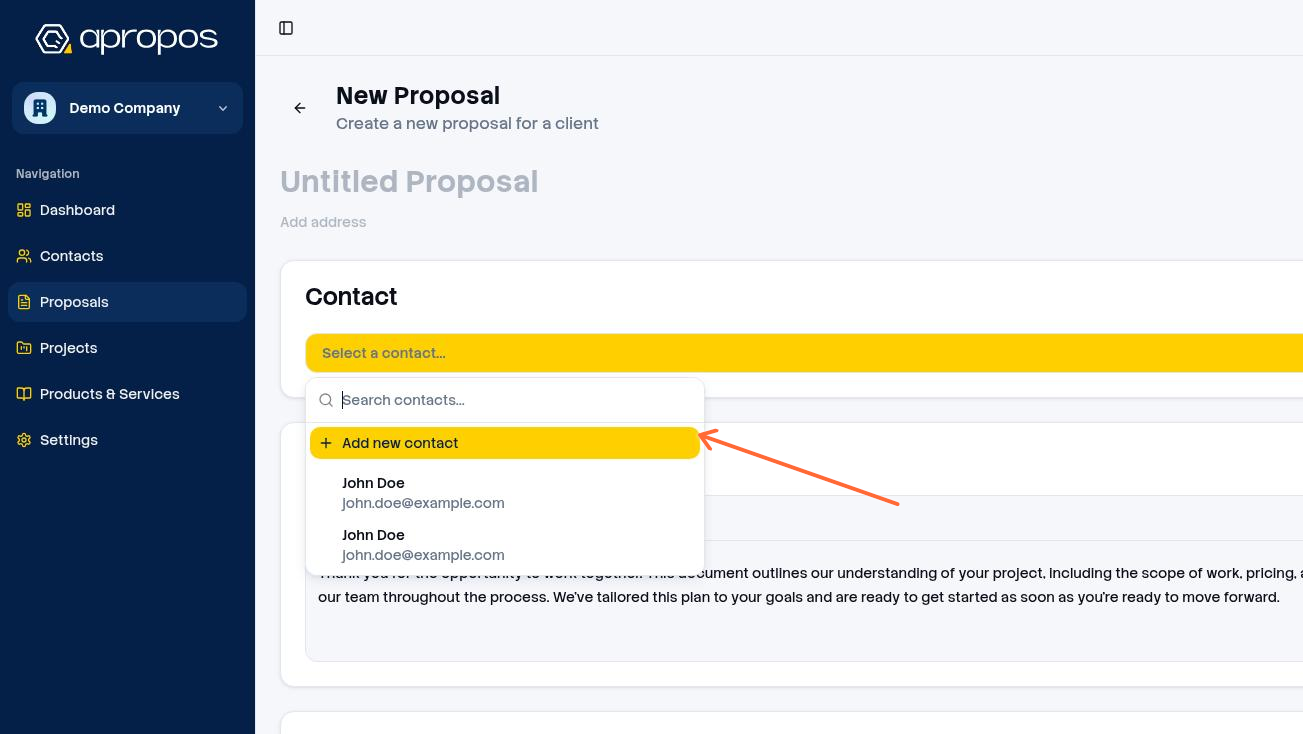
In the proposal editor, the contact picker offers Add new contact (or Add "…" as a new contact when you've typed a search term). The search term becomes the contact's default name, and the new contact is selected for the proposal right away.
How a contact becomes a lead and a customer
A new contact always starts with the Contact status, and Apropos promotes it automatically as your workflow moves forward. You can't set Lead or Customer by hand when creating a contact.
When you successfully send a proposal to the contact, the contact's status changes from Contact to Lead.
When the client accepts the proposal, Apropos creates the contract and starts the signing flow. The contact stays a Lead at this point.
When the contract is fully signed, the contact's status changes to Customer.
If your organization requires countersignature, the client's signature moves the proposal to partially signed and the owner's countersignature completes it — the contact only becomes a Customer after the owner signs. A contact can also go straight from Contact to Customer if the contract is fully executed without ever sending a proposal, because the customer update accepts both source statuses.
Contacts, leads, and customers all live on the same Contacts page under the All, Contacts, Leads, and Customers tabs. If you imported customers from QuickBooks, those contacts are managed by the connection and their fields can't be edited in Apropos while the connection is active.
To bring in existing customers from accounting instead of typing them, connect QuickBooks and sync. Manual contact creation is separate from that import.